
Choose a video stored in Files or Photos and videos, then let Transcribe Audio to Text recognize its speech. Open Transcript to correct the words and export a document. This produces text from the soundtrack. It does not read writing shown in the picture or create a new edited video.
Which video should I choose?
Use the complete clip you want to work from, rather than a preview or an earlier edit. Play the beginning and ending first. Download cloud copies before going offline. A visible filename or thumbnail does not establish that the full video is stored on the phone.
How do I get the spoken words?
The app extracts the soundtrack for transcription and keeps audio for review. Keep your original video separately if you will need the picture later. Let the speech engine finish its first preparation before importing a long clip.
- Tap Choose a file and select Files or Photos and videos.
- After selecting an audio or video through Choose a file, choose the spoken language and Fast or High, then start transcription. Keep the app open while it works.
- Open Transcript and replay unclear passages.
- Correct names, numbers and quotations before exporting.
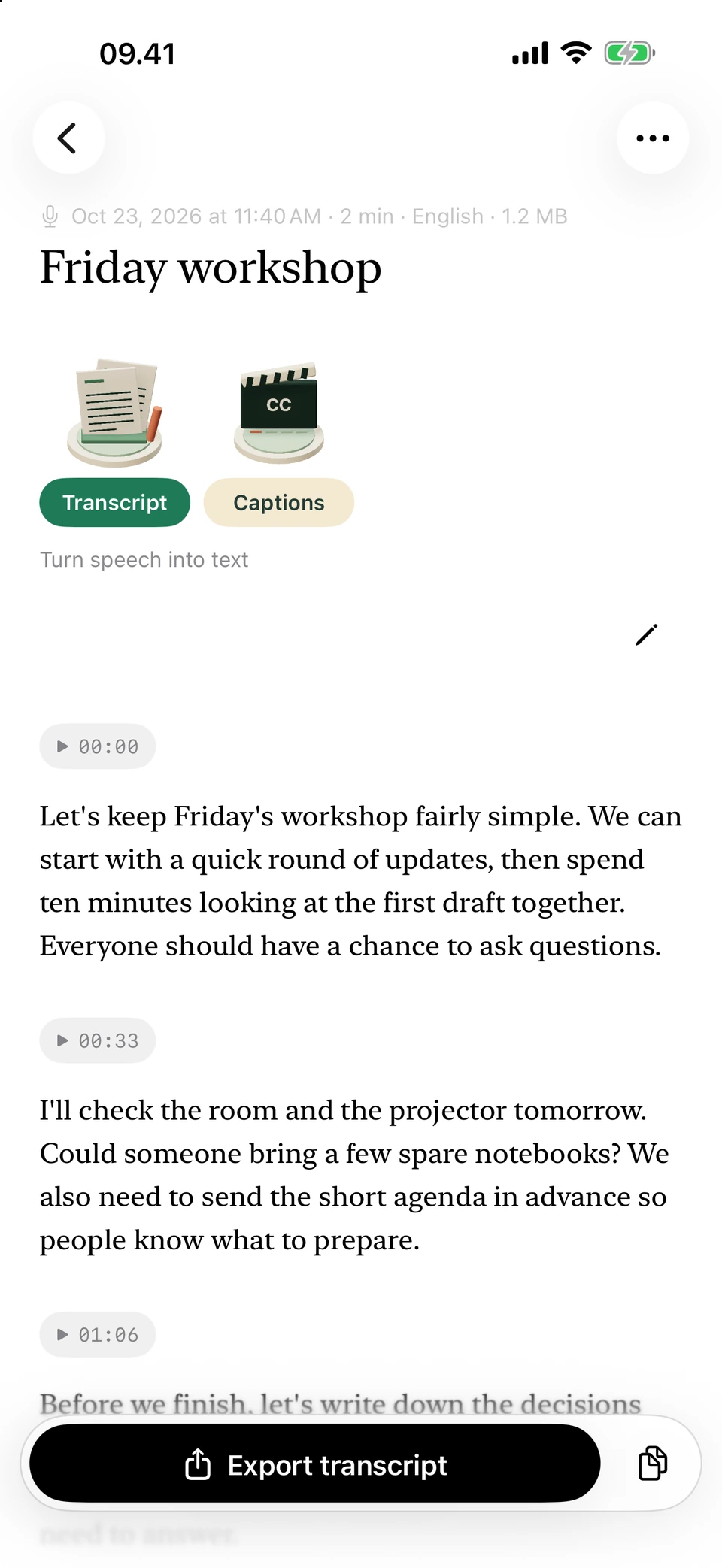
The sample conversation, laid out in paragraphs for review. Screenshots from a development build, using illustrative sample text.
Will it include words that appear on screen?
Speech recognition follows the sound. A slide heading, silent demonstration or name card may have no spoken equivalent. Add any essential visual information yourself in a separate working document. Keep those additions distinguishable from the words actually spoken, especially when preparing a quotation or interview extract.
Should I export text or subtitles?
Export DOCX for further editing, PDF for a reading copy, or TXT and Markdown for plain-text work. If you need to locate a passage later, note its playback time in your working document. Open Captions instead for timed SRT or WebVTT cues to use with your original video.
Questions you may have
Can I paste a video URL?
No. Import a local video file. The app does not fetch videos from YouTube, a social post or a streaming link.
Does it keep an editable video project?
No. The imported audio remains available for review. Keep the original video for picture editing and final video exports.
Can I use it for an MP4?
Select a playable video in the file picker. Compatibility depends on the audio inside it, so check the source if an import fails.
Will music turn into useful text?
Do not rely on that. Review speech over music carefully and remove words that do not match the recording.