
Open your reviewed Transcript and tap Export transcript. Transcribe Audio to Text offers DOCX, PDF, TXT and Markdown. Choose a format, then use Save to Files to keep a document or Share file to send it through another app. DOCX suits further editing; PDF keeps a fixed page layout.
What should I check before exporting?
Correct names, dates and figures while you have the recording open. Tap a word to replay that point and use Edit text to fix the paragraph. If the recipient needs time references, add them in your working document; the current Transcript export is paragraph text.
Check which output you have open. Transcript contains the recognized spoken wording. Clean read is a rewrite. Give exported versions clear names so the person receiving them knows which one they are reading.
Should I choose DOCX, PDF or plain text?
Choose DOCX when you or someone else will keep editing in a word processor. PDF holds a fixed page layout for reading or sharing. TXT gives you the words in a simple text file, while Markdown suits writing tools that use plain text formatting.
Transcript and Clean read offer all four formats. Highlights and Chapters offer TXT, PDF and Markdown. Captions uses SRT or WebVTT, with the timings a video editor needs. Choose the result first, then the file type.
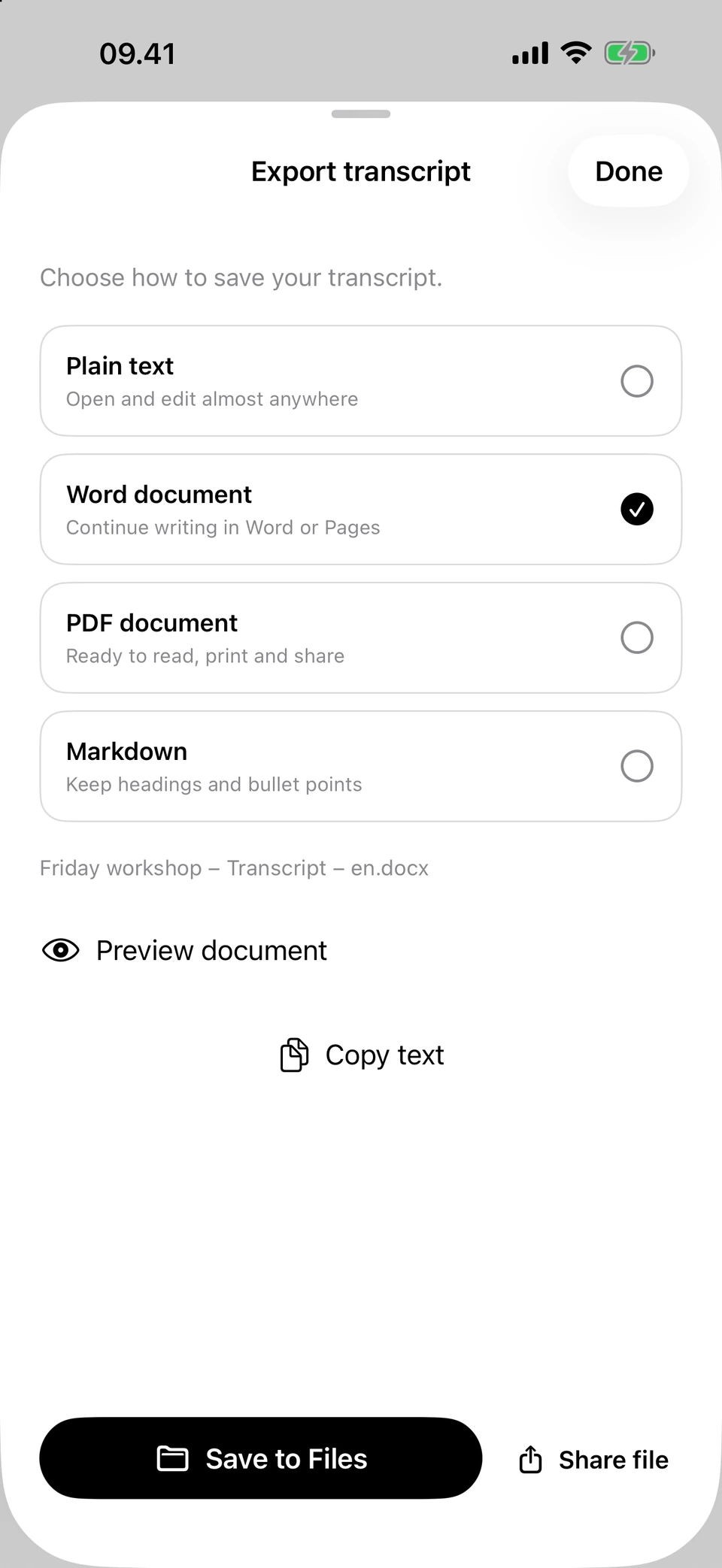
The transcript export sheet, with DOCX selected. Screenshots from a development build, using illustrative sample text.
How do I save or send the file?
The export creates a named document. Choose a folder you will recognize later, especially if you keep both a checked transcript and a rewritten draft.
- Open the reviewed Transcript or ready output you want to save.
- Tap its export button and choose DOCX, PDF, TXT or Markdown, as offered for that output.
- Use Preview document for DOCX or PDF and check the result.
- Choose Save to Files and a folder, or Share file and the receiving app.
- Open the saved copy to check the ending, paragraph breaks and file name.
Why can I no longer export an older output?
A source correction marks saved Captions, Highlights, Chapters and Clean read as outdated. Their previous text stays visible, but whole-output export, copying and editing are blocked until you update. Updating generates a replacement and discards that output’s manual edits.
Export or copy work you need before changing the source. If it is already outdated, long-press individual passages and use Copy text to preserve those edits elsewhere. Then update, review the new version and reapply any edits you still need. Previously exported files remain separate copies.
Questions you may have
Will a DOCX file let me edit the text in Word?
Yes. DOCX contains editable text and works in Word and other compatible word processors.
Can I copy a single paragraph instead of making a document?
Yes. Long-press the passage and use Copy text. The main copy button copies the whole ready output; use a file export when you need a document to keep or attach.
Does export change the language of my transcript?
No. Export keeps your reviewed text in its existing language. Choose the file format for the person or app receiving it, then open the document to check the result.
Does Save to Files keep the document only on my phone?
It depends on the folder you choose. Select a local folder to keep a local copy. A cloud folder sends the document to that storage service.