
Save your Voice Memo as an audio file in Files, then open it with Choose a file in Transcribe Audio to Text. The iPhone transcribes the recording locally. Once it is ready, replay unclear passages, correct the words and export the text as a document you can keep or edit.
How do I save the audio from Voice Memos?
Select the recording in Voice Memos, open the more-actions menu and choose Share. If Options offers Rendered or Editable, choose Rendered for one audio file. Scroll down to Save to Files, pick a folder and tap Save.
Give it a name you will recognize, such as the subject and recording date, and remember the folder. Keep the original memo until you have checked the imported audio and transcript.
How do I import the saved memo?
Use the audio file itself. Playing the memo through a speaker and recording it again adds room noise and can make the words harder to recognize.
- Check that the saved audio opens and includes the whole recording.
- Open Transcribe Audio to Text and wait for the engine to be ready.
- Tap Choose a file, then Files, and open your audio copy.
- After selecting an audio or video through Choose a file, choose the spoken language and Fast or High, then start transcription. Keep the app open while it works.
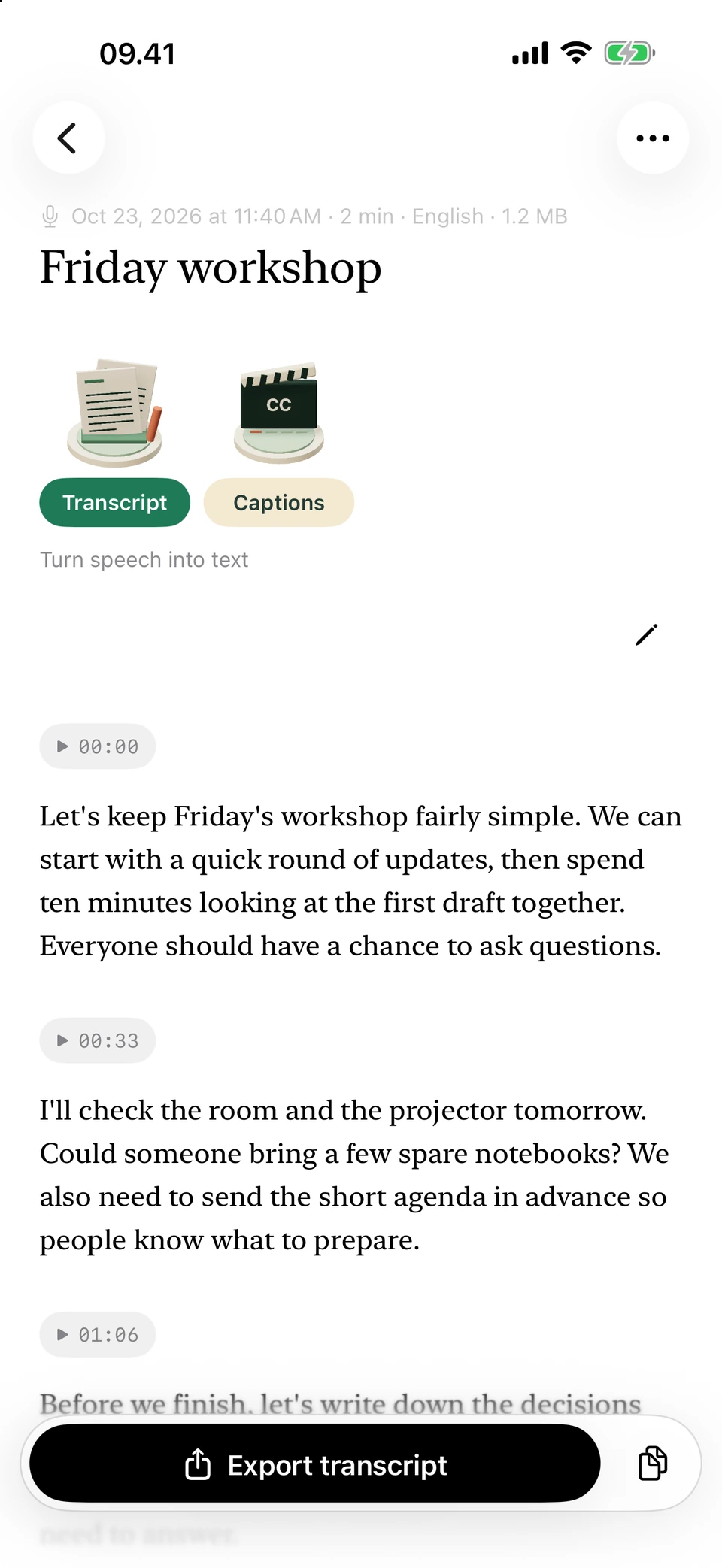
The sample conversation, laid out in paragraphs for review. Screenshots from a development build, using illustrative sample text.
Why can I see the file but not open it offline?
It may still be in cloud storage. A file picker can show the name before the audio has downloaded. Open and play it while you have a connection, or save a copy to a folder on the phone before going offline.
If the file won’t import even with a connection, check that it plays normally from beginning to end. Try exporting a fresh copy from Voice Memos. Changing a file extension does not repair or convert the audio.
What should I do with the transcript?
Check the opening, a passage in the middle and the ending. Then listen back to names, dates, figures and anything that reads strangely. Correct the words in Transcript using the recording as your reference.
Export DOCX to keep editing in a word processor, PDF for a fixed reading copy, or TXT and Markdown for plain-text workflows. Open the saved document and check its ending and paragraph breaks. Keep the original memo if you may need to verify quotations later.
Questions you may have
Can I share straight from Voice Memos to the app?
Save the audio to Files first, then import it with Choose a file. The app doesn’t have a direct share-sheet extension.
Do I need to record the memo again?
No. Import the saved audio file. You keep the original sound without adding another microphone recording.
Does importing delete the original memo?
No. You are importing an exported copy. Keep the original in Voice Memos until you have checked that the copy contains everything you need.
Does this need Apple Intelligence?
No. Transcription works independently of Apple Intelligence. The optional writing tools have their own device and language requirements.