
Save the MP3 on your iPhone, then open it with Choose a file in Transcribe Audio to Text. The phone recognizes the speech and creates a transcript you can review against playback. Correct the words before exporting TXT, DOCX, PDF or Markdown. Changing the file extension alone will not turn audio into text.
How do I choose the right MP3 file?
Open the recording in Files and play a little at the beginning and end. Check its duration and give it a recognisable name. This helps you avoid transcribing a short preview or an earlier edit when you have several copies.
If the MP3 is in a cloud folder, download it before going offline. Seeing its name in the file picker does not mean all the audio is on the phone. Keep the original while you work from the imported copy.
Can I use M4A, WAV or a file from Google Drive?
The same import workflow applies to a local M4A or WAV recording when the iPhone can read its audio encoding. A filename extension alone does not guarantee that every codec inside is supported. Open and play the file first; if import fails, keep the original and obtain a compatible audio copy.
For a recording held in Google Drive or another cloud folder, save a local copy accessible through Files before importing. A sharing link is not the audio itself. Check that the whole recording plays, then use Choose a file in the app. Speech recognition works on that local recording.
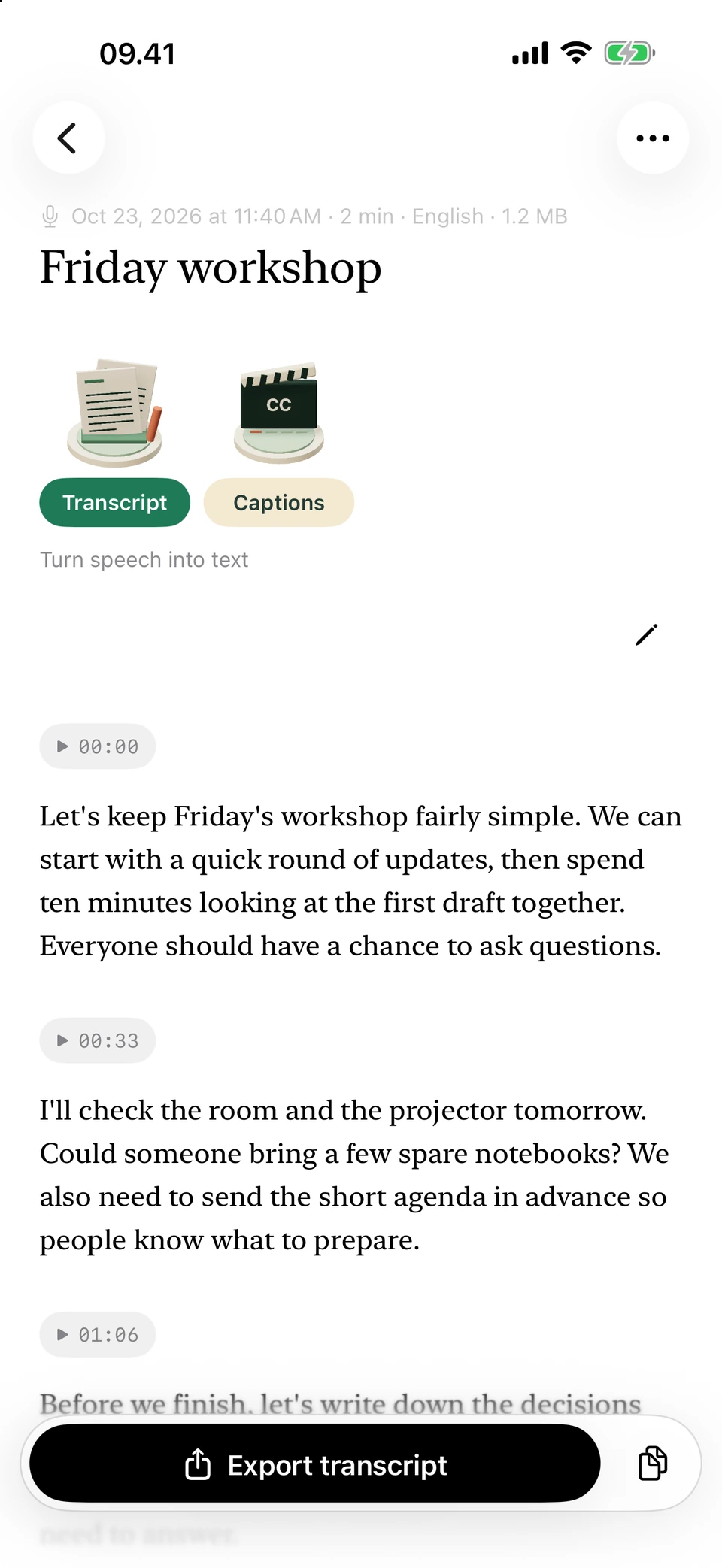
The sample conversation, laid out in paragraphs for review. Screenshots from a development build, using illustrative sample text.
How do I make the transcript?
Let the app finish preparing its speech engine before starting. The model comes with the app, but the first preparation can take several minutes.
- Tap Choose a file, then Files.
- Find and select the MP3 you checked.
- After selecting an audio or video through Choose a file, choose the spoken language and Fast or High, then start transcription. Keep the app open while it works.
- Open Transcript and replay any doubtful words.
- Correct names, numbers and quotations before exporting.
What if the MP3 will not open or import?
First check that it plays normally outside the app and is fully downloaded. If it stops early or has no sound, go back to the original recording or make a fresh audio export from the application that created it.
A file name is not a conversion tool. Renaming another format to .mp3 does not change the audio inside it, and renaming MP3 to .txt does not transcribe it. The app must be able to read the audio; it does not repair broken files or guarantee support for every encoding.
What should I save after checking the words?
The transcript is shown in paragraphs. Tap a word to hear that point, listen to the surrounding phrase and use Edit text to correct it. For a document that needs time references, note them from playback in your working copy.
Export DOCX for further editing, PDF for a fixed reading copy, or TXT and Markdown for text-based work. Use Save to Files or Share file, then open the document to check it. Keep the MP3 if you may need to verify a passage later.
Questions you may have
Do I need to convert the MP3 to WAV first?
Not if the MP3 imports and plays correctly. Try the original file before making another version. Changing its extension will not convert its contents.
Can I transcribe it without internet?
Yes, once the engine is ready and the complete audio file is stored on the phone. Download a cloud copy beforehand.
What if the MP3 is transcribed in the wrong language?
Before making detailed edits, use More > Transcribe again… and select the spoken language. Save any existing corrections first, because a successful new pass replaces the source text.
Does MP3 transcription need Apple Intelligence?
No. Speech recognition uses the bundled Whisper model. The optional writing tools have separate device, model and language requirements.